a-logo-design-featuring-the-words-george_PFBT41WfQZqFei1sD5RGzA_27z0AN-gS2qPTXi2HHSAPg
⌘K
Home Q&A Calls BizPlan26
💛
Home
Q&A Calls
bBizPlan26
cCourses
oOrientation
aAuthentic Speaking
a Authentic Market Discovery
c Create Aligned Offers
Joyful Productivity (Course)
a✨ Authentic Outreach (AO)
j Joyful Pro
bBlog-to-Book
c🚀 Course Creators
y🖼️ Your Signature Framework
e🙋 Effortless Yes
e🌈 Energy Signature
mMeta Ads (FB / IG Advertising)
hHealthy Money
i🎤️ Interview Mastery
l‍ Launch Your Group Program
nNetcaring
s🦸🏽✍🏽 Soulful Content (OGI)
Substack Course
w "What do you do?"
No results
💛
Favorites
Playlists
History
Orientation for George Kao's Courses

Getting in and finding your way

0 / 3 completed
How to Easily Log In
If ever unsure about your username & password, go to any email I've sent that is regarding the course you enrolled in, and at the bottom of each email is your username & password. Take a few minutes now and log into my course platform on every device where you might want to access my course materials. If a link in one of my emails ever drops you at a login screen, that is the same fix -- your username & password are at the bottom of that email.
5 8
Finding your way around the platform
A few small settings worth knowing about: Make the words bigger. On a Mac, hold down the "command" key and press the "+" (plus) key. On Windows, hold CTRL and press "+". Works on any website, not only mine. Light or dark mode. Your choice, in your account settings. "Auto" follows whatever your computer is already set to. Mark a lesson "Complete" when you have watched or read it. The button exists to show you where you left off, and nothing more -- so go ahead and mark a lesson complete once you know what it covers, even if the exercise is still ahead of you. Find a lesson fast. Once a course page has loaded and you can see all the lesson titles listed, press CMD-F (Mac) or CTRL-F (Windows) and type what you are looking for. Autoplay. The videos will roll from one to the next, which is good for when you are doing dishes or driving. Toggle it in the player. Turn it off when you want to stop and comment. "Follow" the lessons you care about. Scroll to the comment area of any lesson and click the bell icon. You will hear about new comments on that lesson only. No need to follow a whole course -- two or three favorites will do, and those emails are what bring you back to the material months later. "Courses" and "Purchases" are different pages. Courses is where your material lives, and it is the one you want. Purchases is a receipt log of your enrollments. You can ignore that page.
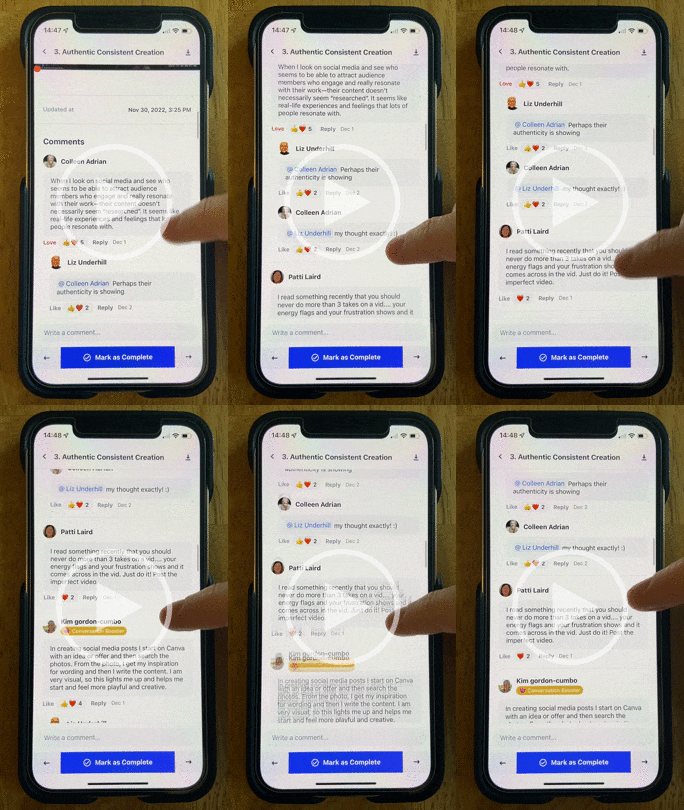
Simplero Mobile App tutorial 5:29
📲 Accessing my courses on mobile - use the Simplero app!
Download the Simplero app from your phone's app store 🙌🏾
9 25
Copyright © 2026
Customer service
Terms and conditions
powered by